
One-Tap Kick Counter
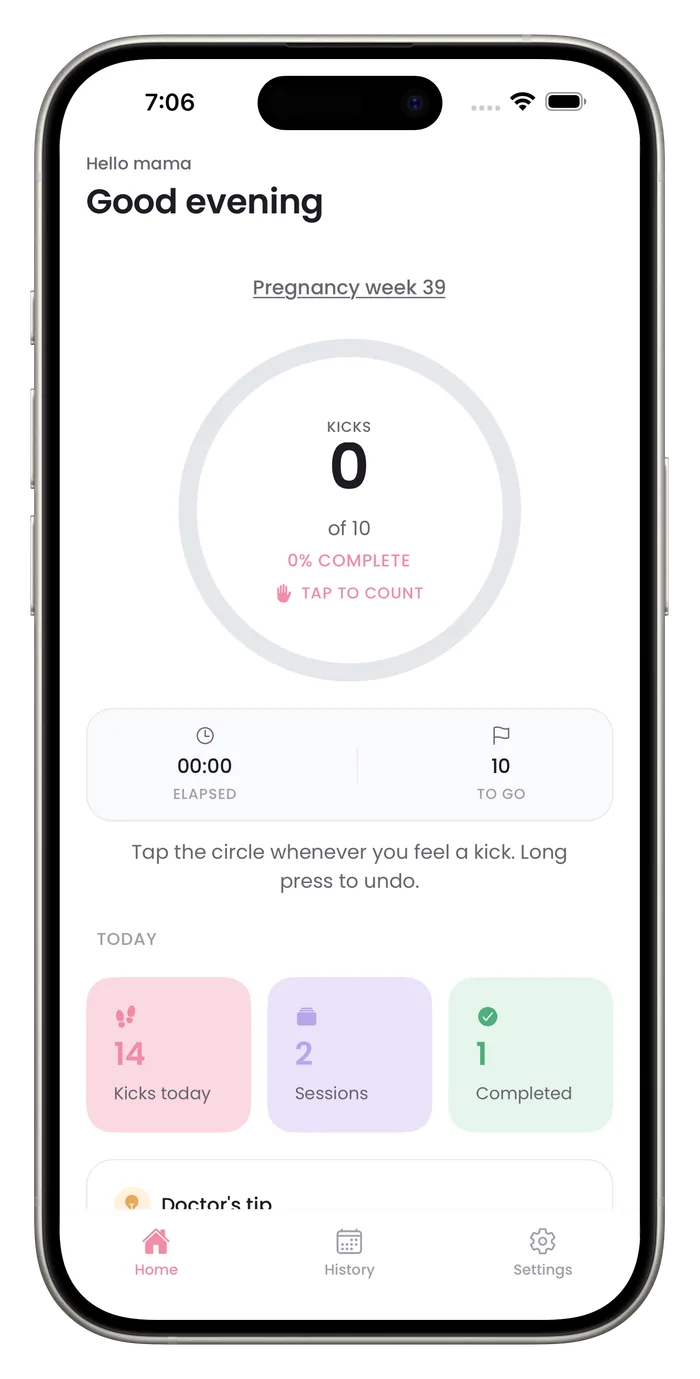
Bumpi Kicks counts kicks with one large circle. Tap it each time you feel a movement and the ring fills toward your goal, while a clock shows how long the session has run. If you tap by mistake, a long press undoes the last tap.

What the counter shows
One circle, one job
The home screen is built around a single tap target, so counting needs no menus and no typing.
A ring and a live count
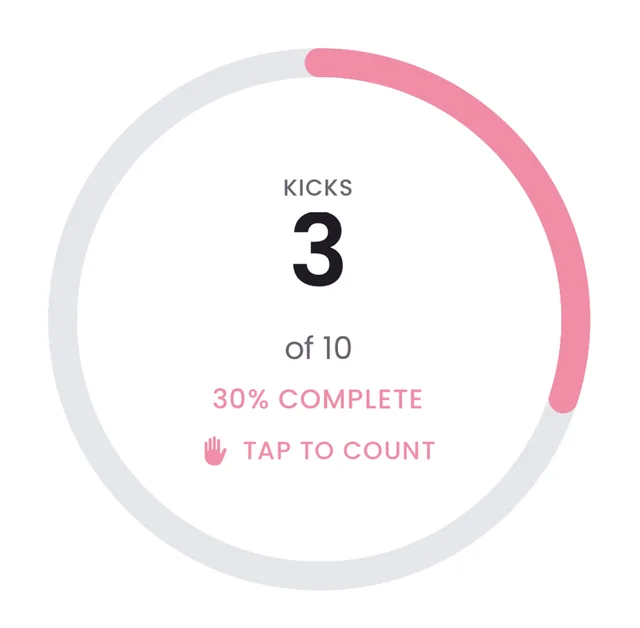
The ring shows percent complete. The count sits in the middle, with the number of kicks still to go below it.
Haptic feedback
Each tap gives a light vibration, and reaching your goal gives a different one, so you can count without watching the screen.
Undo with a long press
A stray tap from a wriggling toddler or a shifting phone is easy to take back.
How a session works
- 1
Open the app
The home screen shows the counter at 0 of your goal. The default goal is 10.
- 2
Tap the circle for each movement
Every tap adds one kick and gives a light vibration.
- 3
Watch the ring and the clock
The ring shows percent complete. Below it, elapsed time and kicks to go update as you count.
- 4
Save or discard
Reaching your goal saves the session on its own a moment later. Before that, tap Save to keep a shorter session or Discard to throw it away.
Questions about this feature
What if I tap by mistake?
Long press the circle to undo the last tap.
Where are my sessions stored?
Saved sessions are stored in the app on your iPhone. The privacy policy lists what the app sends to other services.
Does counting need a subscription?
Yes. Counting needs a Bumpi Kicks Pro subscription. The App Store paywall shows the price and any free trial before you pay, and you can cancel in your iPhone settings.
Start a daily record today.
Bumpi Kicks keeps a simple log of your kick counts that you can look back on and show your care team.
Free to download. Counting needs a Pro subscription, and the App Store paywall shows the price and any free trial before you pay.